How to Start a Skool Community and Make Money (2026 Guide)
To start a Skool community, pick a topic, set up the group, About page and rules, then invite your first 3 members. Full walkthrough, costs and income.

To start a Skool community, create a group on the 14 day free trial, add a logo and cover photo, set up your categories and rules, write an About page, and invite your first three members. After the trial it costs $9 a month on Hobby or $99 a month on Pro, and the setup itself takes an afternoon. Getting the group to feel alive is the part most people skip, so this guide covers both, plus the part most guides leave out entirely: what starting actually costs and how owners turn a new group into recurring income. Both plans start with a 14 day free trial, so you can build the whole thing before you pay anything.
What you get to work with
- Free trial 14 days on either Hobby or Pro
- Categories up to 10 per group, names up to 30 characters
- Admins up to 30 (more than 1 admin needs Pro)
- Custom URL Pro only, first change free, then $100 each
- Pinned posts up to 3 on the feed
- First members aim for 3 friends, then 10 true regulars
- You are not late 457 of 1,000 rooms in Skool Discovery were created in 2026
What should your Skool community be about?
The biggest mistake new owners make is opening Skool before they know what the group is for. Skool's own founder training pushes one idea hard: build around a topic you actually care about, ideally one that scratches your own itch. Passion is what keeps you showing up in month three when the novelty is gone.
Pick something specific enough that the right person reads it and thinks "that is exactly me." A group called "Marketing" is dead on arrival. A group for "freelance copywriters landing their first retainer client" has a pulse. If you are stuck at this step, steal from 50+ Skool community ideas that already work, then write an About page that actually converts.
How do you create a Skool community?
Once you know the topic, the mechanical setup is quick. Everything below lives inside your group's admin Settings.
Add a logo and cover photo
Go to Settings, then the General tab, and click CHANGE next to the group icon or cover photo. Upload your images and hit SAVE. This is the first thing a visitor sees, so treat it like a storefront window, not an afterthought.
Create your categories
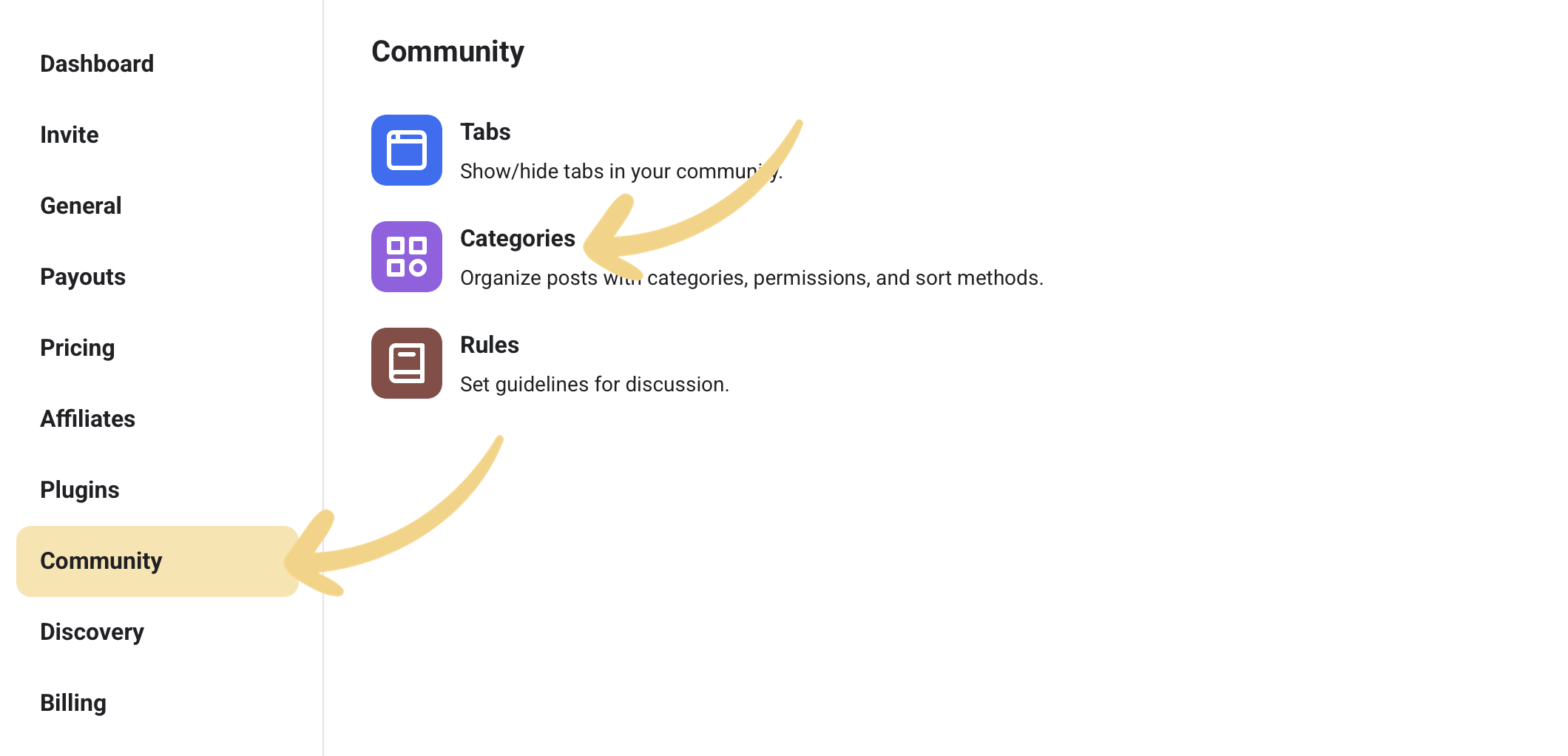
Under Settings, Community, Categories, click NEW and name the category (up to 30 characters). Choose whether Members or only Admins can post there, then pick a sorting method (Default, New, Top week, or Top month). You can have up to 10 categories, but start with two or three. Empty categories make a group feel abandoned.
Write your group rules
In the Rules tab, edit the default rules or add your own with NEW. Keep them short and human. Rules are less about policing and more about signalling what kind of place this is. Later you can drop the rules link into a pinned post or your first lesson.

How do you get a custom Skool URL?
Claim it under Settings, General, CLAIM URL on the Pro plan. Every new group starts with a temporary URL. Your first change is free. After that, each URL change costs $100, so choose carefully and treat the first one as your real name, not a draft. Skool's pricing page lists Custom URL on both plans, but its URL help article says Pro only, so check before you plan around it on Hobby.
Builder insight: turn on the member map early if community feel matters to you. Under Settings you can toggle the Map feature on, and members can pin their location. A map full of dots across the world makes a small group look bigger and more connected than a plain feed does.
How do you get your first members on Skool?
Invite three people who will actually post, then widen from there. Do not wait for a crowd. Skool's setup training frames launching a community like throwing a party: you set the vibe, invite three friends, then show up and let things happen. Three real people posting beats an empty group of 300.
You have three free ways to bring people in, and all of them grant instant access without a payment or a pending request.
Email invites
In the Invite tab, type an email and click SEND. The person gets an email and clicks JOIN NOW to come in pre-approved. You can even bundle custom course access into an email invite.

Bulk CSV upload
Have a list already? Use IMPORT, then UPLOAD FILE to bring in a batch at once. Very large lists are usually cleaner to run through a CRM and Zapier.
Zapier automation
Connect Zapier with INTEGRATE so new contacts get invited automatically after an action you choose, like buying something or filling a form. This is a Pro feature and worth it once you are past the first handful of members.
How do you make a Skool community succeed?
Your real launch target is not a number of signups. It is roughly 10 people who show up regularly on their own. Skool's engagement training is blunt about how to get there, and it runs against instinct.
Stop lecturing. The "value post" that reads like a webinar kills conversation. Ask questions people can actually answer instead. Do things that do not scale, like welcoming every new member by name. Then praise your model citizens publicly so everyone learns what good looks like here.
Once you have those regulars, the group starts running partly on its own, and that is the point where growth, monetizing, and reducing churn become worth your attention. For the growth side, see how to get your first Skool members.
How big and how new are other Skool communities?
Most are small and recent, which is good news if you are starting today. Of the 1,000 rooms in Skool Discovery on 7 September 2026, 457 were created during 2026 and another 310 during 2025. The median room held 206 members, and a quarter held 64 or fewer, so a room of 64 people is already in Skool's own listing.
| Discovery rooms, 7 September 2026 | Value |
|---|---|
| Created in 2026 | 457 of 1,000 |
| Created in 2025 | 310 of 1,000 |
| Smallest room | 2 members |
| 25th percentile | 64 members |
| Median | 206 members |
| Median monthly price | $39 |
Discovery is a trending list and not a census, so read this as what Skool surfaces, not everything that exists. The tables are in the community-cost dataset. If you have no following yet, read do you need an audience to start a Skool community.
How much does it cost to start a Skool community?
Between $0 and $99 for your first month. The 14 day free trial covers either plan, then Hobby is $9 per month and Pro is $99 per month, with the same headline limits and different transaction fees on member payments: 10% + 30c on Hobby and 2.9% + 30c on Pro. Skool's Help Center also lists several tools as Pro-only, including AutoDM, Zapier and the custom URL. There is no setup fee, no per-member fee, and no charge for courses, videos or live calls. The full arithmetic, including when Pro becomes the cheaper plan, is in how much Skool costs.
That makes the real startup cost your time, not money. An afternoon of setup, an About page, and a few weeks of showing up daily is the actual investment, which is exactly why so many owners start the group before they feel ready.
Can you make a free Skool community?
Yes for your members, no for you. You can set your group to free, but you still pay the $9 or $99 plan after the trial, and with no member payments there are no transaction fees. So the cheapest way to run a free group is $9 a month, or $90 a year on yearly billing.
Think before you start free and charge later. Skool grandfathers existing members, so if you add a $33 price to a free group of 100, new members pay $33 and those 100 stay free. A freemium setup lets free members upgrade inside the same group instead.
How do you make money with a Skool community?
Charge for access, and keep the offer simple. A paid Skool community is a subscription: members pay monthly or annually for access to the community, the classroom and the live calls, and Skool handles the billing and pays you out. Most successful owners run one of three models.
The first is paid from day one. You launch at a price, often with a free trial for members, and every member is a customer. This works when you have an audience or a skill people already pay for. The second is free group into paid group: the free community builds trust at scale, and a paid tier sits behind it for people who want more depth or access. The third is free group as lead source for a high-ticket offer, where the community itself earns nothing but feeds coaching or services.
Whichever model you pick, price against the result you deliver rather than the hours you spend. The reasoning, with real numbers from communities charging $5 to $500 a month, is in how to price a Skool community, and the honest answer to whether this works at all, including what typical owners actually earn, is in can you make money on Skool. For proof of the ceiling, the Skool Games leaderboard publicly ranks the highest-earning communities on the platform. Every guide for this stage is in the launching a Skool community hub.
Builder insight: do not wait for a big member count to charge. A specific promise to a specific person supports a price from the first week, and ten paying members at $49 a month is $490 of monthly recurring revenue from a group small enough to hand-hold every single member. After Skool's fees and plan that leaves $429 on Hobby or $373.79 on Pro, which is why Hobby is the right plan at this size. Raising prices later as proof accumulates is far easier than converting a free crowd you trained to expect everything for nothing.
Frequently asked questions
Is it free to start a Skool community?
You start with a 14 day free trial on either the Hobby or Pro plan, so you can build and launch the whole group before paying. After the trial, the plan becomes a recurring subscription of $9 or $99 a month. You can also run a completely free group for your members even while you pay for the plan.
How many members do I need before I invite people publicly?
Start privately with three friends who will actually post. A group with a few live conversations converts far better than an empty one, so seed the activity first, then open the doors wider.
Do I need the Pro plan to start?
No. You can start on Hobby. You need Pro for things like a custom URL, more than one admin, AutoDM, Zapier, and webinars. Many owners begin on Hobby and upgrade once the group is earning.
Is it too late to start a Skool community in 2026?
The data says no. Of the 1,000 rooms in Skool Discovery on 7 September 2026, 457 were created in 2026 and 76.7% were created in 2025 or 2026. Discovery favours recent rooms, so a new community is not shut out of the listing for being new.
How many categories should I create at launch?
Skool allows up to 10, but two or three is plenty at the start. Empty categories signal a dead group, so add more only once the existing ones fill with posts.
How much does it cost to start a Skool community?
Nothing for the first 14 days, then $9 per month on Hobby or $99 per month on Pro. Both plans advertise unlimited members, courses and live calls; the differences are the transaction fee on member payments, 10% + 30c on Hobby versus 2.9% + 30c on Pro, and a set of Pro-only tools. There are no setup or per-member fees.
How do you make money with a Skool community?
By charging for access. Owners either launch paid from day one, run a free community with a paid tier behind it, or use a free group to feed a high-ticket coaching or service offer. Skool handles billing and payouts, so monetizing is a pricing decision rather than a technical project.
How do I make a Skool community succeed?
Pick a specific topic, write an About page that names exactly who the group is for, seed it with three real people before inviting anyone publicly, and post questions rather than lectures until roughly ten members show up on their own. Nearly every dead Skool group skipped one of those four steps.
Start your Skool community
Ready to build a community of your own? Start on Skool through our link. We may earn a commission if you create and keep a paid community, at no extra cost to you.
Start your Skool community →Keep reading

How to Run a Virtual Summit Inside Skool: 0 to Nearly 1,000
Skool Community Engagement: Get Members Posting (2026)
Skool for Beginners: How It Works and How to Start in 2026

Skool Webinar vs Skool Call: Which Should You Run?
Skool Invite Link: 4 Ways to Invite Members (2026 Guide)

Skool Facebook Pixel & Ads Tracking Setup (2026 Guide)

Skool Chat Explained: DMs, Limits and Group Chat (2026)
Skool VAT Invoice: How Skool Tax Really Works (2026)