How to Use the Skool Calendar and Run Live Calls
To run live calls on Skool, hit Go Live for an instant Skool Call, or schedule events in the Calendar with durations from 30 minutes to 24 hours.

To go live on Skool, click Go Live in your group for an instant Skool Call, or open the Calendar and schedule an event ahead of time. Skool Call is built in, so you stream natively in the app or browser with no third-party tools. Live calls and events are one of the most underused features on the platform, which is a shame, because a weekly call is one of the strongest reasons members stay. Here is how to run both.
Calendar and calls at a glance
- Skool Call native, included in both Hobby and Pro plans
- Go Live creates an instant event called "Random Hangout"
- Event duration 30 minutes to 24 hours
- Recurrence daily, weekly, monthly, or annually
- Recording download window of 14 days before it expires
- Webinar a Pro-only, one-to-many format
Go live instantly with Skool Call
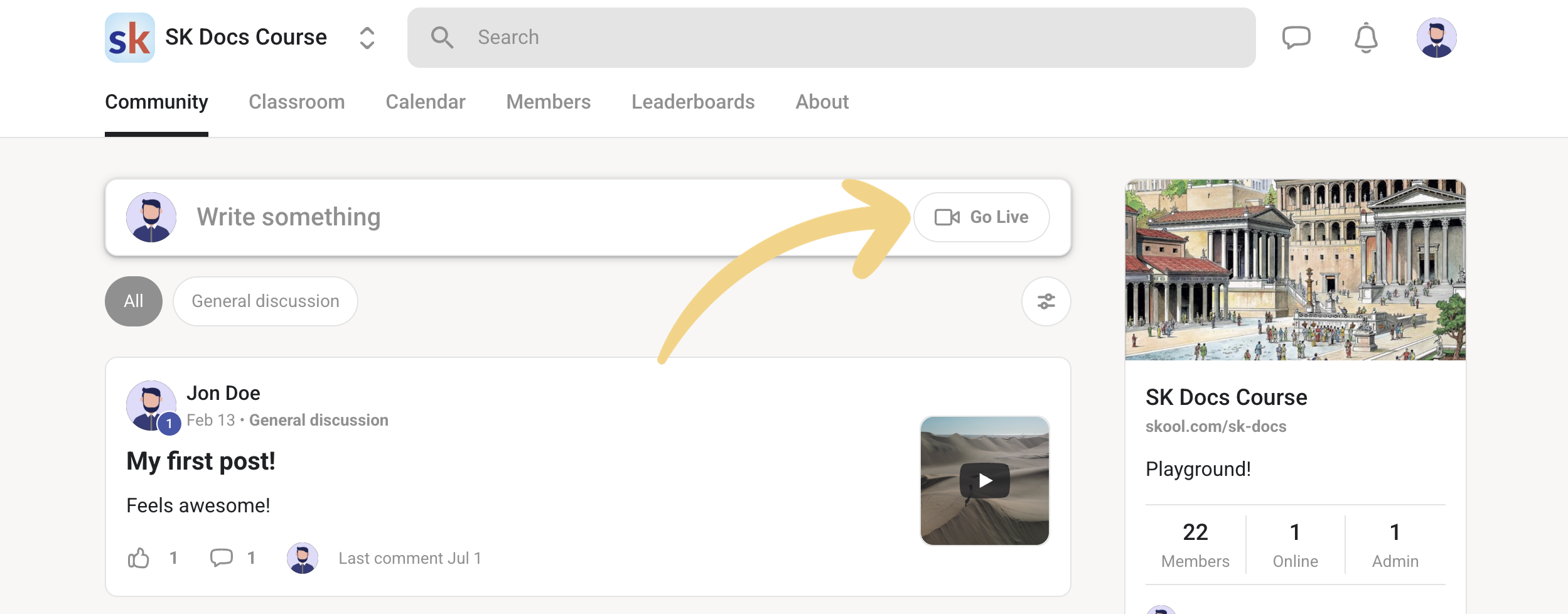
The fastest way to start a call is Go Live. As an admin, click Go Live in your group and Skool spins up an instant event called "Random Hangout" and notifies members. Grab COPY CALL LINK to share it anywhere.
On the call you can chat, share your screen, let members share theirs, change your background, mute or kick people, and record. When you are done, you can leave the call or end it for everyone.
Start the call
Click Go Live in your group. Skool creates the instant "Random Hangout" event and alerts your members, then hands you a call link to copy and share.
Record and save it
Record during the call, then end it. You get a notification to download the recording, and you have 14 days before it expires. Share it in a post or upload it to a Classroom page so people who missed the call still get the value.
Watch out: the recording download window is only 14 days. If you run regular calls, build the habit of downloading and re-uploading each recording to your Classroom the same week, or you will lose replays you meant to keep.
Re-uploading is a Classroom job, so pair this with how to build a Skool classroom and the limits in Skool video hosting.
Schedule events in the Calendar
For anything planned, use the Calendar rather than Go Live. Scheduled events show up for members, send reminders, and can repeat.
Open the event modal
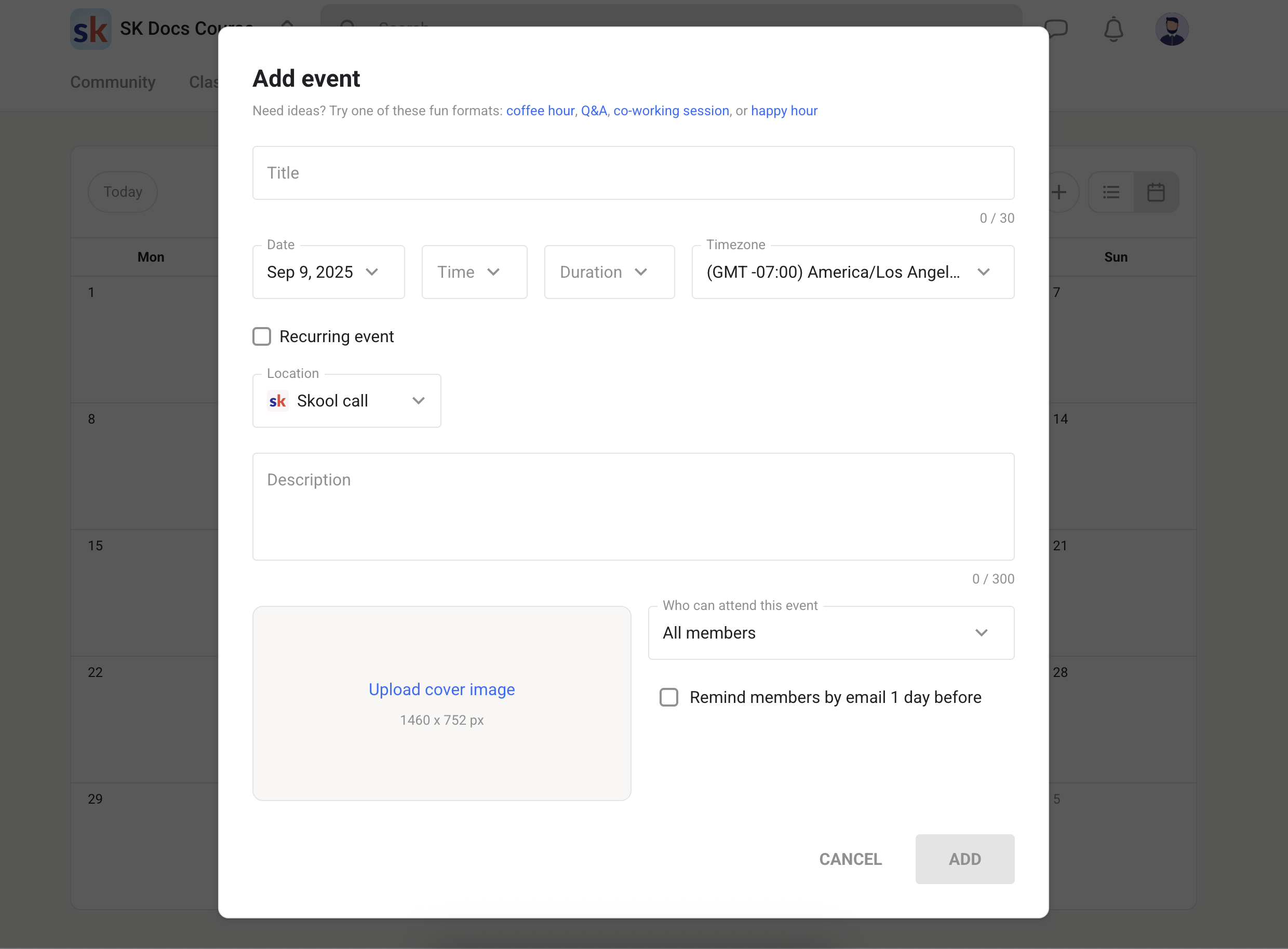
Click the plus button in the Calendar tab to open Add event. Fill in the title, date, time, duration, timezone, and whether it recurs.
Set duration and recurrence
Duration runs from 30 minutes to 24 hours. For a recurring event, choose daily, weekly, monthly, or annually, plus an end condition (never, on a set day, or after a number of occurrences). A weekly call is the classic retention builder here.
Choose the location
Location defaults to Skool Call, which is included in both plans. You can also point the event at Zoom, Google Meet, or a physical address for in-person meetups, and the case for staying native is broken down in [Skool Call vs Zoom](/blog/skool-call-vs-zoom). Add a description and cover image, and you are done.
Control who can join, and run paid events
Not every call should be open to everyone. Each event has an Access dropdown with four options: all members, members on or above a level (for example level 3 grants levels 3 through 9), members on or above a tier (Standard, Premium, VIP, where higher tiers inherit lower-tier events), or members in a specific course.
That last one is how you run a paid event. Sell a course with Buy Now, then give call access to members in that paid course. Or use tier access, like a VIP-only call. Either way, the event stays locked to the people who paid. Setting those tiers up is covered in Skool membership tiers, and the level route runs on Skool points and levels.
Webinars and editing events
If you need a one-to-many presentation rather than a collaborative call, that is a Skool Webinar, and it is a Pro plan feature. Create it from the Calendar with Create new event, select Skool Webinar, and at the scheduled time click JOIN WEBINAR to start.
Editing is simple. Open the event, click the Edit icon, change what you need, and SAVE. For recurring events you choose the scope: just this event, this and all following events, or the entire series. To remove one, click Delete event.
Frequently asked questions
Is Skool Call free, or do I need Pro?
Skool Call is included in both the Hobby and Pro plans, so you can run live group calls on either. The Webinar format, which is one-to-many, is the Pro-only feature.
How long can a Skool event be?
Event duration ranges from 30 minutes to 24 hours. Events can also recur daily, weekly, monthly, or annually, with an end condition of your choice.
How long do I have to download a call recording?
You have 14 days to download a Skool Call recording before it expires. Save it and re-upload it to a Classroom page or share it in a post so members who missed the live call can still watch.
Can I limit a call to paying members?
Yes. Use the event's Access dropdown to restrict it by level, by tier (Standard, Premium, VIP), or to members in a specific course. To run a paid event, sell a Buy Now course and grant call access to buyers, or restrict the event to a paid tier.
Start your Skool community
Ready to build a community of your own? Start on Skool through our link. We may earn a commission if you create and keep a paid community, at no extra cost to you.
Start your Skool community →Keep reading

Skool Webinar vs Skool Call: Which Should You Run?

How to Run a Virtual Summit Inside Skool: 0 to Nearly 1,000

Skool Invite Link: 4 Ways to Invite Members (2026 Guide)

Skool Facebook Pixel & Ads Tracking Setup (2026 Guide)

Skool Chat Explained: DMs, Limits and Group Chat (2026)

Skool AutoMod: How to Stop Spam in Your Community (2026)
Skool Analytics Explained: Every Metric in the Dashboard
Skool API: What Exists and How to Automate Skool in 2026

How Skool Points and Levels Work (2026)
